How to Update Galaxy Note 2 LTE N7105 with Android 4 3 XXUEMK5 Jelly Bean Official Firmware

Selasa, 07 Januari 2014

The LTE version of Samsung Galaxy Note 2 with model number GT-N7105 has received the Android 4.3 Jelly Bean update with firmware build number N7105XXUEMK5. The new official firmware is currently available as an Over-The-Air (OTA) update as well as through Samsung KIES.

Firmware details
PDA: N7105XXUEMK5
CSC: N7105NEEEMK1
MODEM: N7105XXUEMJ9
Version: Android 4.3
Build date: Nov 13, 2013
Regions: Nordic countries

Samsung Galaxy Note 2 (LTE) N7105 users who missed the OTA update notification or unable to access the update over Samsung KIES, and those who are residing outside Nordic countries can now download and install the same manually, using our step-by-step guide.

Pre-requisites
1. Install USB Drivers for Samsung Galaxy Note 2 on the computer.
2. Enable USB Debugging Mode on the phone by navigating to Settings >> Developer Options.
3. Make a backup of all your important data before following the guide.
4. The Galaxy Note 2 should be factory unlocked and not locked to any particular carrier.
5. Ensure the battery of the phone is charged more than 80 percent.
6. The Android 4.3 XXUEMK5 Jelly Bean firmware is compatible only with the LTE version of Samsung Galaxy Note 2 (GT-N7105). Applying this to any incorrect variant might brick the device. Verify the model number of the Galaxy Note 2 by navigating to Settings >> About Phone.

File Required
1. Android 4.3 XXUEMK5 Jelly Bean Firmware (Mirror Link 1, Link 2) for Galaxy Note 2 (LTE) N7105
2. Odin 3.07

Steps to Update Galaxy Note 2 (LTE) N7105 with Android 4.3 XXUEMK5 Jelly Bean Firmware
Step 1: Extract Firmware zip file using winrar/7zip/winzip or any other extracting tool, you will get a .tar.md5 file and some other files.
Step 2: Extract Odin zip file and you will get Odin3 v3.07.exe along with few other files.
Step 3: Switch off the Galaxy Note 2.
Step 4: Boot the device into Download Mode by pressing and holding Volume Down and Power buttons together until a construction Android robot icon with a warning triangle appears on screen. Now press the Volume Up button to enter Download Mode.
Step 5: Run Odin on the computer as an Administrator.
Step 6: Connect the Galaxy Note 2 to the computer using USB cable while it is in the Download Mode. Wait until Odin detects the device. When the device is connected successfully, the ID: COM box will turn to light blue with the COM port number. Additionally, the successful connected will be indicated by a message saying Added.

Note: If the Added message does not appear, then try re-install USB drivers or changing the port on the computer.

Step 7: Select the following files in Odin from extracted N7105XXUEMK5 firmware folder:
  • Click the PDA button and select the .tar.md5 file.
  • Click the Phone button and select file with MODEM in its name. Ignore if there is no such file.
  • Click the CSC button and select file with CSC in its name. Ignore if there is no such file.
  • Click the PIT button and select the .pit file. Ignore if there is no such file.
    Step 8: In Odin, enable Auto Reboot and F. Reset Time checkboxes. Also, ensure the Re-Partition checkbox is chosen only if a .pit file was chosen in the previous step.
    Step 9: Verify everything suggested in Step 7 and Step 8 is done correctly. Then hit the Start button to begin the installation process.
    Step 10: Once the installation process is completed, your phone will restart and soon you will see a PASS message with green background in the left-most box at the very top of the Odin. You can now unplug the USB cable to disconnect it from the computer.

    Samsung Galaxy Note 2 (LTE) N7105 should be now updated with official Android 4.3 XXUEMK5 Jelly Bean. Head over to Settings >> About Phone to verify the software version running on the device.

    Note: If Galaxy Note 2 (LTE) N7105 stuck at booting animation after Step 10 then go to recovery mode (press and hold the Volume Up and Power buttons together) and perform Wipe data/Factory Reset and Wipe Cache Partition task before selecting reboot system now function. In recovery mode use Volume keys to navigate between options and Power key to select the option. Please note, performing wiping task will erase your device internal memory data and not external SD card data.

    Click here to know How to Root Galaxy Note 2 (LTE) N7105 running on Android 4.3 Jelly Bean firmware.
    Read More..

    How to Root Galaxy Tab 2 7 0 Wi Fi P3110 on Android 4 2 2 Jelly Bean Firmware

    Minggu, 05 Januari 2014

    A new software update based on Android 4.2.2 Jelly Bean has been released for the Wi-Fi only version of the Samsung Galaxy Tab 2 7.0 (GT-P3110).

    Samsung Galaxy Tab 2 7.0 (Wi-Fi) P3110 users who have already updated their devices with Android 4.2.2 Jelly Bean, may root their devices using the tutorial below.

    This tutorial uses CF-Auto-Root file released by recognised XDA Developers, Chainfire. The CF-Auto-Root file allowing Galaxy Tab 2 7.0 users to root their devices easily without depending on the firmware. It completely supports Android 4.2.2 Jelly Bean and future firmware as well. Head over to the CF-Auto-Root main thread to learn more about the root method.

    Note: Using this root increases your flash counter. The flash counter keeps track of how many custom firmwares you have flashed, as this voids warranty. Triangle Away can be used to reset the flash counter after installing CF-Auto-Root.

    Disclaimer: Rooting voids the warranty of your device. We and the developer of this rooting procedures shall not be held responsible if any undesirable outcomes may happen to your device. use of this root guide is solely at your own risk!

    Pre-requisites
    1. Install USB Drivers for Samsung Galaxy Tab 2 7.0 on the computer.
    2. Enable USB Debugging Mode on the phone by navigating to Settings >> Developer Options.
    3. Make a backup of all your important data before following the guide.
    4. The Galaxy Tab 2 7.0 should be factory unlocked and not locked to any particular carrier.
    5. Ensure the battery of the phone is charged more than 80 per cent.
    6. The CF-Auto-Root file works only on Samsung Galaxy Tab 2 7.0 (Wi-Fi) P3110. Applying this to any incorrect variant might brick the device. Verify the model number of the Galaxy Tab 2 7.0 by navigating to Settings >> About Phone.

    File Required
    1. CF-Auto-Root for Galaxy Tab 2 7.0 (Wi-Fi) P3110
    2. Odin 3.07

    Steps to Root Galaxy Tab 2 7.0 (Wi-Fi) P3110 Running on Android 4.2.2 Jelly Bean Firmware
    Step 1: Extract CF-Auto-Root and Odin 3.07 files using winrar/7zip/winzip or any other extracting tool.
    Step 2: Switch off the Galaxy Tab 2 7.0. Then boot the device into Download Mode by pressing and holding Volume Down and Power buttons together until a construction Android robot icon with a warning triangle appears on screen. Now press the Volume Up button to enter Download Mode.
    Step 3: Launch Odin on the computer as an Administrator.
    Step 4: Connect the Galaxy Tab 2 7.0 to the computer using USB cable while it is in the Download Mode. Wait until Odin detects the device. When the device is connected successfully, the ID: COM box will turn blue with the COM port number. Additionally, the successful connected will be indicated by a message saying Added.

    Note: If the Added message does not appear, then try re-install USB drivers or changing the port on the computer.

    Step 5: In Odin, click the PDA button and select the CF-Auto-Root-espressowifi-espressowifixx-gtp3110.tar.md5 file.
    Step 6: Verify that Auto Reboot and F.Reset Time checkboxes are selected in Odin. Also, ensure the Re-Partition option is not selected.
    Step 7: Double-check and click Start button in Odin. The installation process will now begin.
    Step 8: Once the installation process is completed, your phone will restart and soon you will see a PASS message with green background in the left-most box at the very top of the Odin. You can now unplug the USB cable to disconnect your device from computer.

    Samsung Galaxy Tab 2 7.0 (Wi-Fi) P3110 running on Android 4.2.2 Jelly Bean firmware is now rooted successfully. You can now install any app that requires root permission. Verify the root status of the device by downloading Root Checker app from Google Play Store.

    Thanks to all fellas at XDA who first tried out this rooting technique. This method was originally posted via XDA-Developers original thread.

    Click here to know How to Update Galaxy Tab 2 7.0 (Wi-Fi) P3110 with official Android 4.2.2 Jelly Bean firmware.
    Read More..

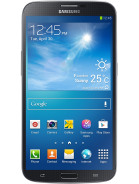
    How to Update Galaxy Mega 6 3 I9200 with Android 4 2 2 XXUBMJ4 Jelly Bean Official Firmware

    Sabtu, 04 Januari 2014

    Samsung Galaxy Mega 6.3 with model number GT-I9200 has received another Android 4.2.2 Jelly Bean update with firmware build number I9200XXUBMJ4. The new official firmware is now available as an Over-The-Air (OTA) update as well as through Samsung KIES.

    Firmware details
    PDA: I9200XXUBMJ4
    CSC: I9200OLBBMJ4
    MODEM: I9200XXUBMJ2
    Version: Android 4.2.2
    Build date: Nov 07, 2013
    Regions: Indonesia, Singapore, Vietnam, Thailand

    Samsung Galaxy Mega 6.3 I9200 users who missed the OTA update notification or unable to access the update over Samsung KIES, can now download and install the same manually using our step-by-step guide.

    Pre-requisites
    1. Install USB Drivers for Samsung Galaxy Mega 6.3 on the computer.
    2. Enable USB Debugging Mode on the phone by navigating to Settings >> Developer Options.
    3. Make a backup of all your important data before following the guide.
    4. The Galaxy Mega 6.3 should be factory unlocked and not locked to any particular carrier.
    5. Ensure the battery of the phone is charged more than 80 percent.
    6. The Android 4.2.2 XXUBMJ4 Jelly Bean firmware is compatible only with the Samsung Galaxy Mega 6.3 (GT-I9200). Applying this to any incorrect variant might brick the device. Verify the model number of the Galaxy Mega 6.3 by navigating to Settings >> About Phone.

    Files Required
    1. Android 4.2.2 XXUBMJ4 Jelly Bean Firmware (Mirror Link 1, Link 2) for Galaxy Mega 6.3 I9200
    2. Odin 3.07

    Steps to Update Galaxy Mega 6.3 I9200 with Android 4.2.2 XXUBMJ4 Jelly Bean Firmware
    Step 1: Extract Firmware zip file using winrar/7zip/winzip or any other extracting tool, you will get a .tar.md5 file and some other files.
    Step 2: Extract Odin zip file and you will get Odin3 v3.07.exe along with few other files.
    Step 3: Switch off the Galaxy Mega 6.3.
    Step 4: Boot the device into Download Mode by pressing and holding Volume Down, Home and Power buttons together until a construction Android robot icon with a warning triangle appears on screen. Now press the Volume Up button to enter Download Mode.
    Step 5: Run Odin on the computer as an Administrator.
    Step 6: Connect the Galaxy Mega 6.3 to the computer using USB cable while it is in the Download Mode. Wait until Odin detects the device. When the device is connected successfully, the ID: COM box will turn to light blue with the COM port number. Additionally, the successful connected will be indicated by a message saying Added.

    Note: If the Added message does not appear, then try re-install USB drivers or changing the port on the computer.

    Step 7: Select the following files in Odin from extracted I9200XXUBMJ4 firmware folder:
    • Click the PDA button and select the .tar.md5 file.
    • Click the Phone button and select file with MODEM in its name. Ignore if there is no such file.
    • Click the CSC button and select file with CSC in its name. Ignore if there is no such file.
    • Click the PIT button and select the .pit file. Ignore if there is no such file.
    Step 8: In Odin, enable Auto Reboot and F. Reset Time checkboxes. Also, ensure the Re-Partition checkbox is chosen only if a .pit file was chosen in the previous step.
    Step 9: Verify everything suggested in Step 7 and Step 8 is done correctly. Then hit the Start button to begin the installation process.
    Step 10: Once the installation process is completed, your phone will restart and soon you will see a PASS message with green background in the left-most box at the very top of the Odin. You can now unplug the USB cable to disconnect your device from the computer.

    Samsung Galaxy Mega 6.3 I9200 should be now updated with official Android 4.2.2 XXUBMJ4 Jelly Bean. Head over to Settings >> About Phone to verify the software version running on the device.

    Note: If Galaxy Mega 6.3 I9200 stuck at booting animation after Step 10 then go to recovery mode (press and hold the Volume Up, Home and Power buttons together) and perform Wipe data/Factory Reset and Wipe Cache Partition task before selecting reboot system now function. In recovery mode use Volume keys to navigate between options and Power key to select the option. Please note, performing wiping task will erase your device internal memory data and not external SD card data.

    Click here to know How to Root Galaxy Mega 6.3 I9200 running on Android 4.2.2 Jelly Bean firmware.
    Read More..

    PlayerPro Music Player 2 42 for Android

    Jumat, 03 Januari 2014


    An advanced Music Player for Android devices is now available for download. PlayerPro Music Player v2.42 requires Android 2.0 or higher version. 
    PlayerPro: skins, artist/album information and art, grid/list views, lyrics …
    * Browse your music by albums, artists, genres, songs, playlists, folders,
    and album artists.
    * Automatically downloads relevant album artwork, artist pictures and genre illustrations.
    * Manually pick preferred artwork/picture/illustration from internet, Gallery, ID3 tags, album folder and cache.
    * 14 different SKINS.
    * 2 different layouts, Grid and List.
    * Read Album and artist reviews.
    * Download, search and and save lyrics (ID3 tag).
    * Single and group tag editing (title, album, artist, track, year, genre, comment).
    * Mixable audio effects for Android >2.3 devices: 5 band graphic equalizer with default/customizable presets (edit, rename etc), stereo widening effect, reverb effects, bass boost effect, volume control …
    * Free addition DSP plugin for Android <=2.2 devices: 10 band graphic equalizer with 15 default presets, customizable presets, preamp control, bass boost control, volume control …
    * Music stats and smart playlists: ratings, play/skip counts, last played, last added.
    * Import/export music history and ratings: Songbird, Winamp, Wmp, Media Monkey, Music files etc.
    * Music folder selection.
    * Choice of 2 lock screen widgets with many customization options (unlock slider, sound toggler, skip tracks using prev/next volume buttons, swipe gesture …).
    * Choice of 5 differnt home screen widgets (4×1, 2×2, 3×3, 4×4, 4×2).
    * Scrobbling (Simple Last.fm, Scrobble Droid).
    * Sleep timer with fade out.
    * Share text notifications/artwork/music on social networks (tweeter, facebook, gmail, picassa etc).
    * Headset support.
    * Swipe gestures (player: swipe album art to skip songs, browsers: swipe left to play next, swipe right to play last).
    … and many other features to discover !

    New in this version:

    • DSPPack v3.0: new icon and welcome screen, gapless playback, auto/manual crossfade, option to only crossfade when shuffling, option to adjust auto/manual crossfade time, optional virtualizer control for Android > 2.3 phones, ability to adjust playback priority, improved smoothness of the seekbar, various bug fixes
    • Notification status enhancements and bug fixes
    • Bluetooth AVRCP 1.3 for CyanogenMod ROMs ONLY
    • New help screen design
    • Few bug fixes
    Download
    http://letitbit.net/download/05134.0bcb04e1d7a31df17074de50d065/PlayerPro_Music_Player_v2.42_for_Android.apk.html
    Read More..